Graphic User Interface
Main e-puck GUI Window
To start the main GUI from the unifr_api_epuck package, please run the following command in your terminal:
$ python3 -m unifr_api_epuck -g

The main e-puck GUI is able to start a server host for the communication between robots and/or start streaming the camera of an e-puck.
The window is split into two parts:
The first part is for creating or joining the communication.
Two scenarios are possible :
If no host exists: you can create one by inserting the computer IP address in the input field.
If a host already exists: insert the IP address of the host to join.
The second part is to stream the camera of an e-puck.
2.1 Insert the IP address of the robot to stream.
2.2 Locate the folder where the pictures are saved from the robot.
Note
To use this feature, the e-puck must be run by the same computer that streams the camera.
This should be the same path as rob.init_camera(path) of the e-puck
Tip
First define the location from the GUI and then copy/paste the path into the init_camera(path) method in the controller code of the robot.
Also note that the GUI will create a .json file to save your inputs in order that you don’t have to insert them each time your launching the GUI.
Monitor Host Communication
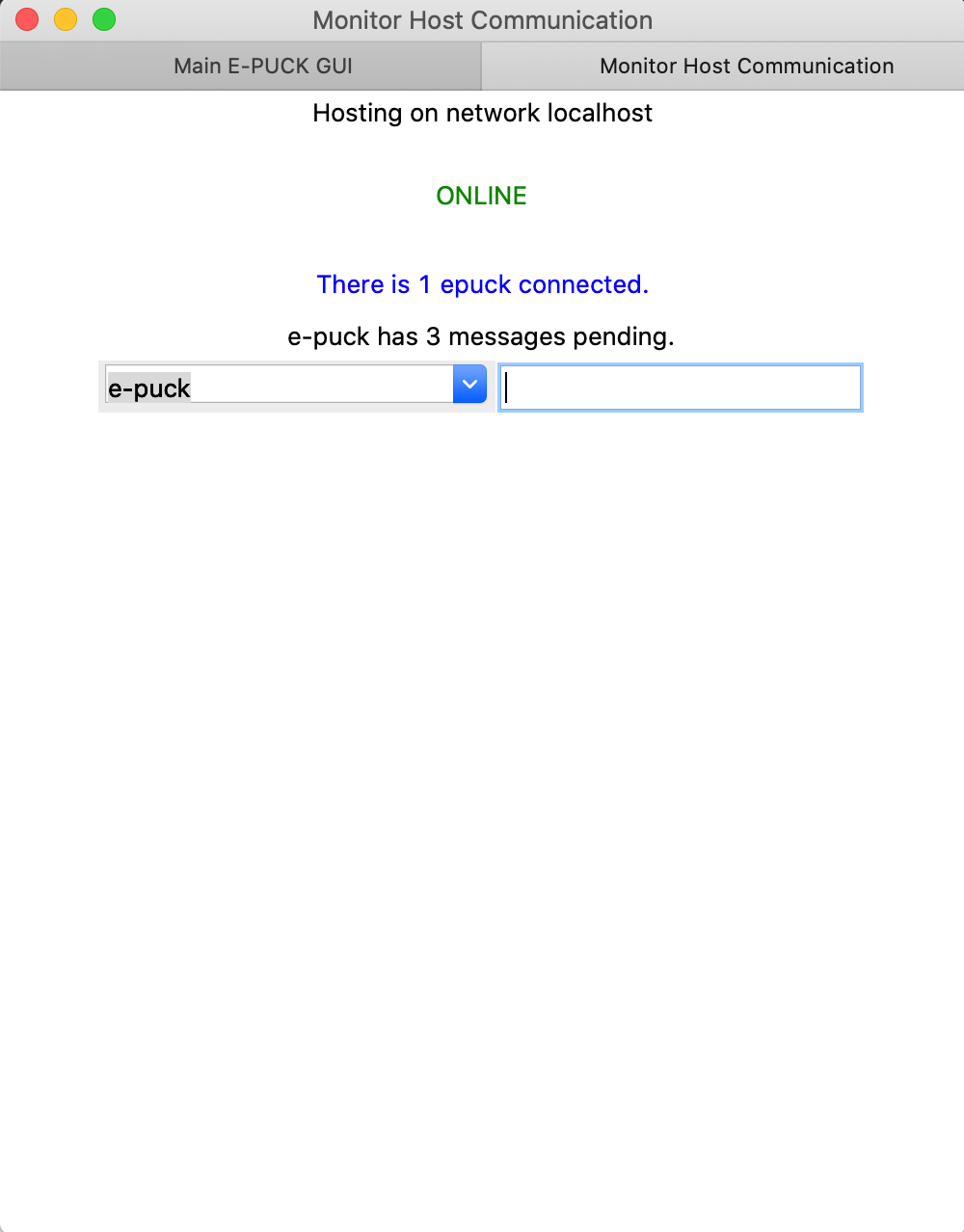
In this window, you will be able to :
Monitor how many pending messages the e-pucks have.
Send messages to robots.
If a robot loses the communication with the host, then it will disappear from the list and all its pending messages will be removed.
e-puck Camera
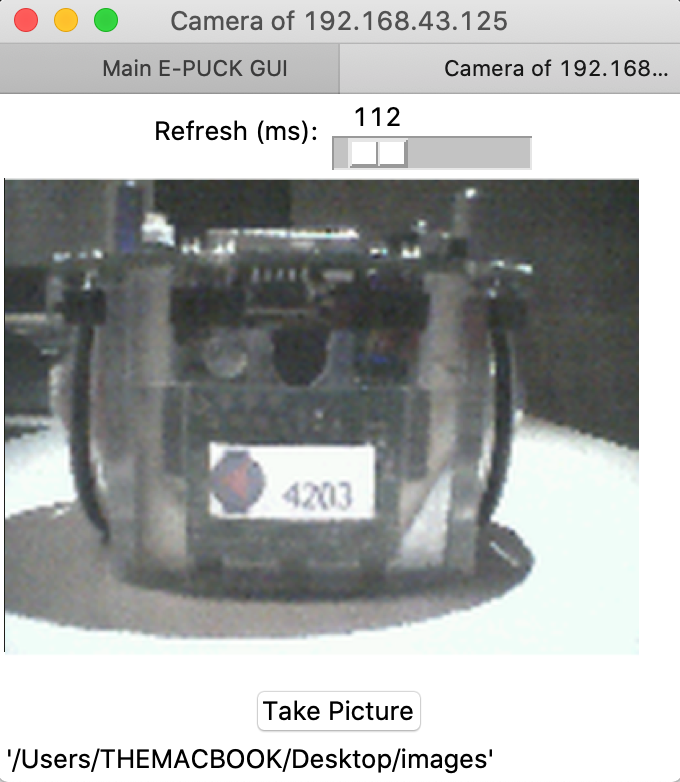
You can move the slider to adjust the refresh rate of the stream.
You can take a picture of the steam and it will save it on the same directory specified before.
Copy/Paste the directory link.